Simulation Agent Configuration
This tutorial explains how to configure the Simulation Agent for a specific simulation source (e.g. country:demo:sim) based on the Learning session simulation agent walkthrough.
It is written for product managers, developers, and simulation engineers who need to enable AI‑powered querying of simulation data in Asset Copilot.
1. Conceptual Overview
Before configuring anything, it is important to understand the three core building blocks involved.
1.1 Main Components
Simulation Source
A data source representing a running or always‑on simulation (e.g. country:demo:sim).
Simulation Agent
An agent capable of querying simulated values, metadata, and (optionally) historical trends.
Orchestrator Agent
The agent that interprets user intent, delegates work to the simulation agent, and presents results.
Note
The Simulation Agent does not work globally by default — it is enabled per simulation source via traits.
2. Prerequisites
Ensure the following before proceeding:
- You have admin or configuration access to the Admin / Reasoning Ops portal
- A simulation is running (Always‑On or Planning)
- The Simulation Agent is available in the Agent Catalog
- The Common Simulation Meta Source exists (used for cross‑simulation metadata)
3. Step‑by‑Step Configuration
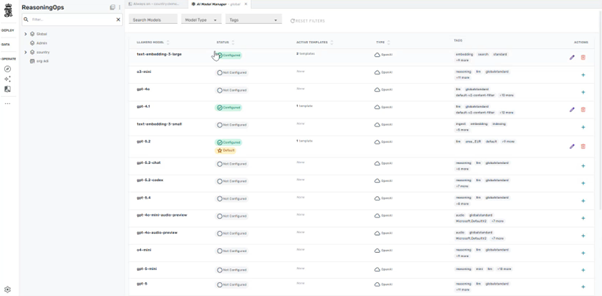
Step 1: Open Reasoning / Agent Configuration Portal
Navigate to the admin portal and open Reasoning Ops.
Step 2: Verify Simulation Agent Exists
- Open Agents
- Locate Simulation Agent
- Confirm:
- Agent is enabled
- Agent has access to simulation query tools
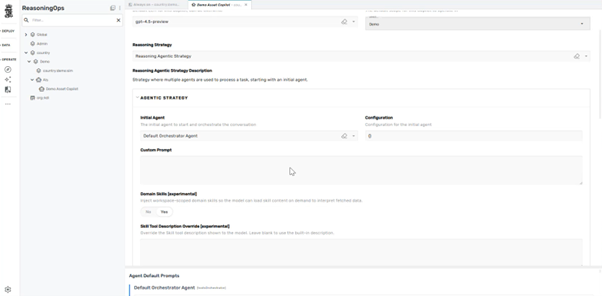
Key fields to verify:
| Field | Expected Value |
|---|---|
| Preferred LLM | e.g. gpt‑5.2 or codex variant |
| Tool bindings | Include Simulation Query tools |
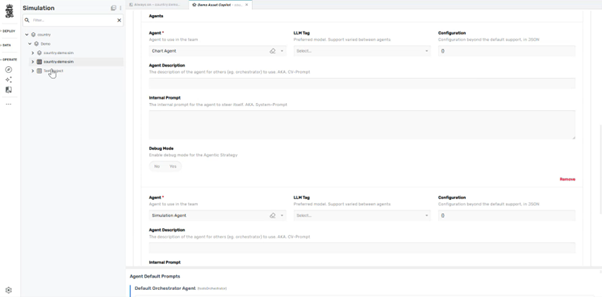
Step 3: Identify the Simulation Source
Navigate to Sources and locate your simulation source, for example:
country:demo:simcountry:demo:testSim
This source represents the simulation whose data the agent will query.
Step 4: Add the Simulation Reasoning Trait
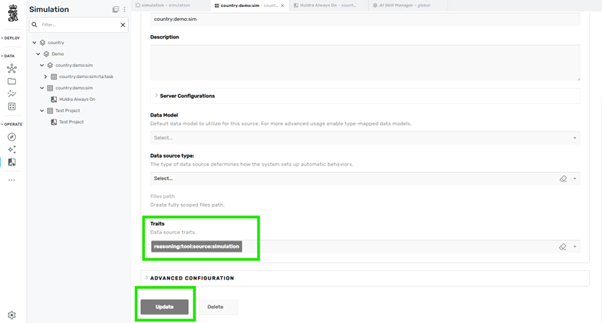
Critical Step
This step explicitly allows the Simulation Agent to access this simulation.
On the simulation source:
- Open Traits
-
Add the trait:
-
Save / Update the source
Step 5: Ensure Common Simulation Meta Source Is Present
The Simulation Agent often requires metadata lookup (modules, types, tag classification).
Verify there is a Common Simulation Meta Source with trait:
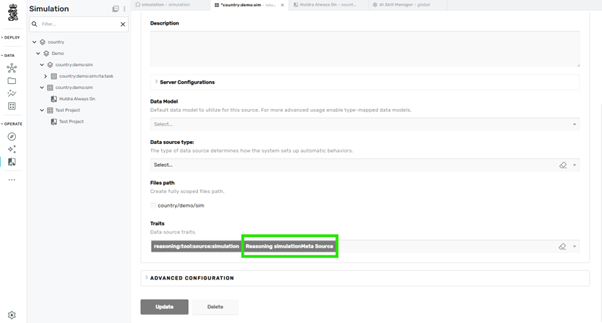
Info
This enables queries like:
- "List all compressors"
- "How many pumps are in the model?"
Step 6: (Optional) Remove Trait From Other Sources
To avoid ambiguity during testing:
- Remove
reasoning:tool:source:simulationfrom other simulation sources
This ensures the agent resolves queries against one simulation only.
4. Validate the Configuration
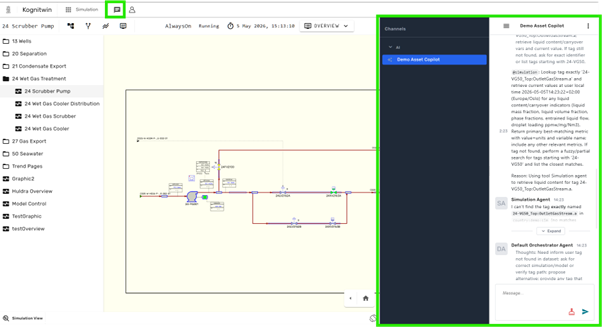
Step 7: Open Simulation Dashboard
- Open the simulation via Portal → Dashboard
- Ensure the Chat / Copilot icon is visible
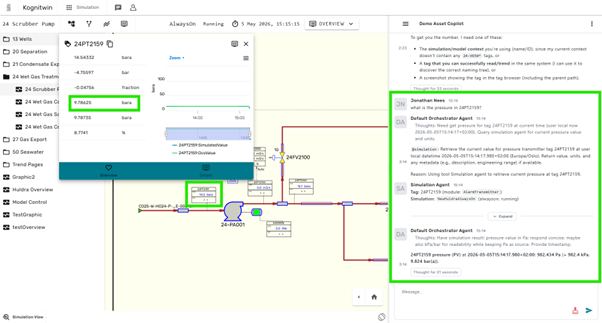
Step 8: Test Core Queries
Try the following queries:
Expected behavior:
- Simulation Agent is invoked
- Values resolved from the active simulation
- Units normalized (e.g. K → °C)
5. (Advanced) Skills for Better Interpretation
Module Retrieval Skill
To improve classification of equipment (compressors, pumps, separators):
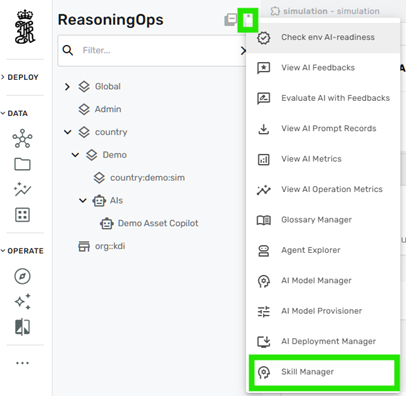
- Open Skill Manager
- Locate Module Retrieval skill
- Add your simulation source to the allowed scope
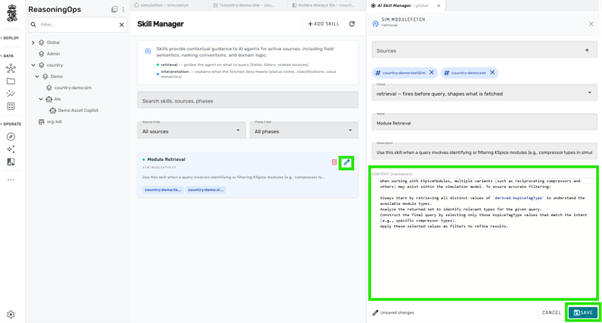
This enables queries such as:
6. Common Failure Modes & Fixes
| Symptom | Likely Cause | Fix |
|---|---|---|
| Tag not found | Wrong simulation scoped | Re‑check trait placement |
| Agent answers but no data | Missing simulationMeta source | Add meta source |
| Only snapshot, no trend | Historian not enabled | Enable timeseries access |
| Wrong tool invoked | Skill missing scope | Update skill configuration |
7. Final Architecture Summary
- Traits define access
- Skills improve interpretation
- The Simulation Agent remains intentionally narrow
8. Next Steps
Suggested follow‑ups:
- Add historian access for trends & charts
- Introduce control actions (start/stop/setpoint agents)
- Validate behavior across multiple simulations
Success
You now have a fully configured Simulation Agent bound to a specific simulation source.