What-IF
A What-If simulation replicates the current state of the main Always-On simulation, but allows for user-controlled changes to both parameters and inputs, as well as controlling the simulation execution. Thereby, What-If simulations can be used to study alternative operating scenarios interactively.
When pressing the two branched arrows from the Simulation Dashboard the what-if simulation dialog opens.
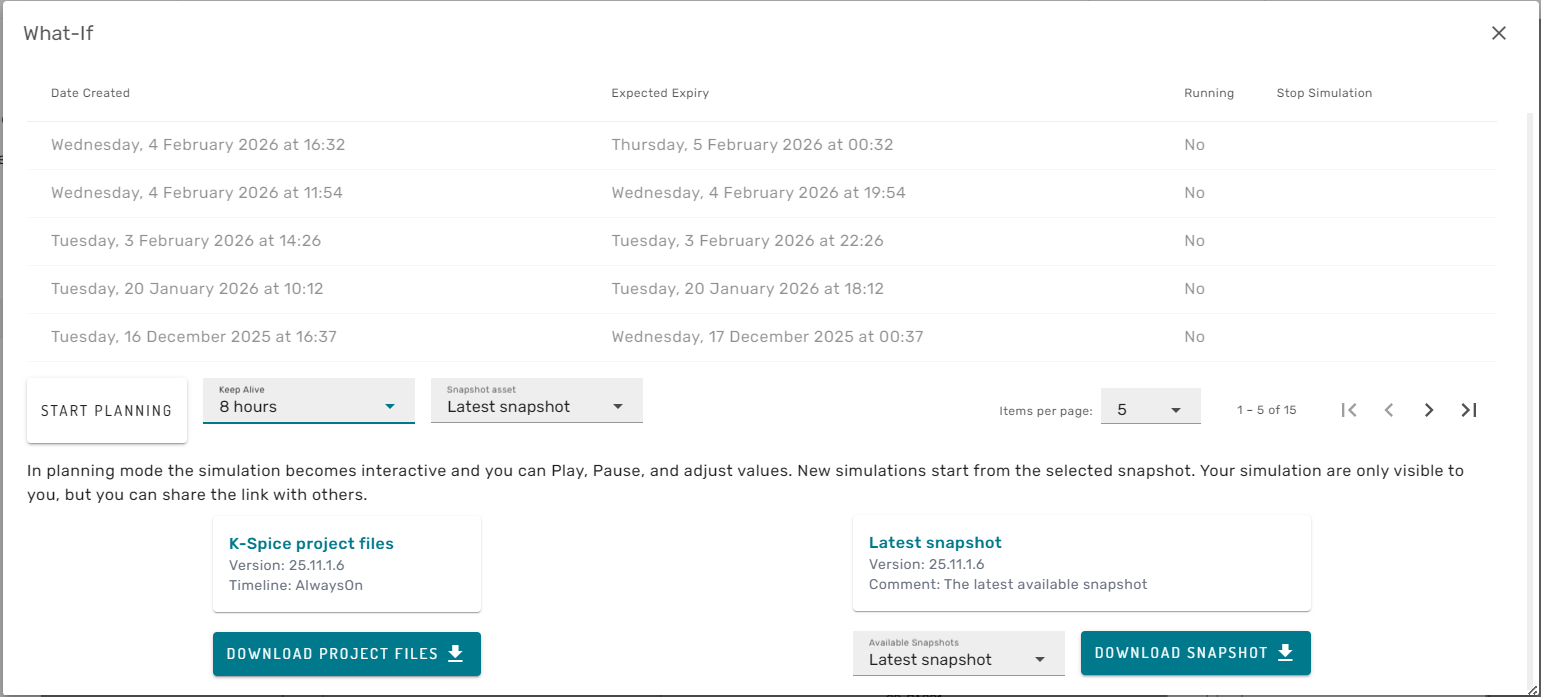
In the top of the dialog the user can se a list of active and expired What-If simulation instances. In the lower section of the dialog, the simulation project files and selected snapshots from the Always-On Simulation can be downloaded to the local computer, to enable on-prem What-If simulations in the corresponding desktop software (for example K-Spice Engineering).
In the central part of the Dialog a new What-If simulation instance can be invoked. For that, the user should first choose the time-of-life for the simulation (for example 8h) and which snapshot to start the simulation from (for example latest snapshot, or a snapshot from 3 days back). When pressing the "START PLANNING" button, a new browser tab will open for the new What-If simulation instance. It may take up to some minutes until the new simulation instance is ready for user-interaction. During this time the user will see a screen informing that the simulation instance is currently deploying:
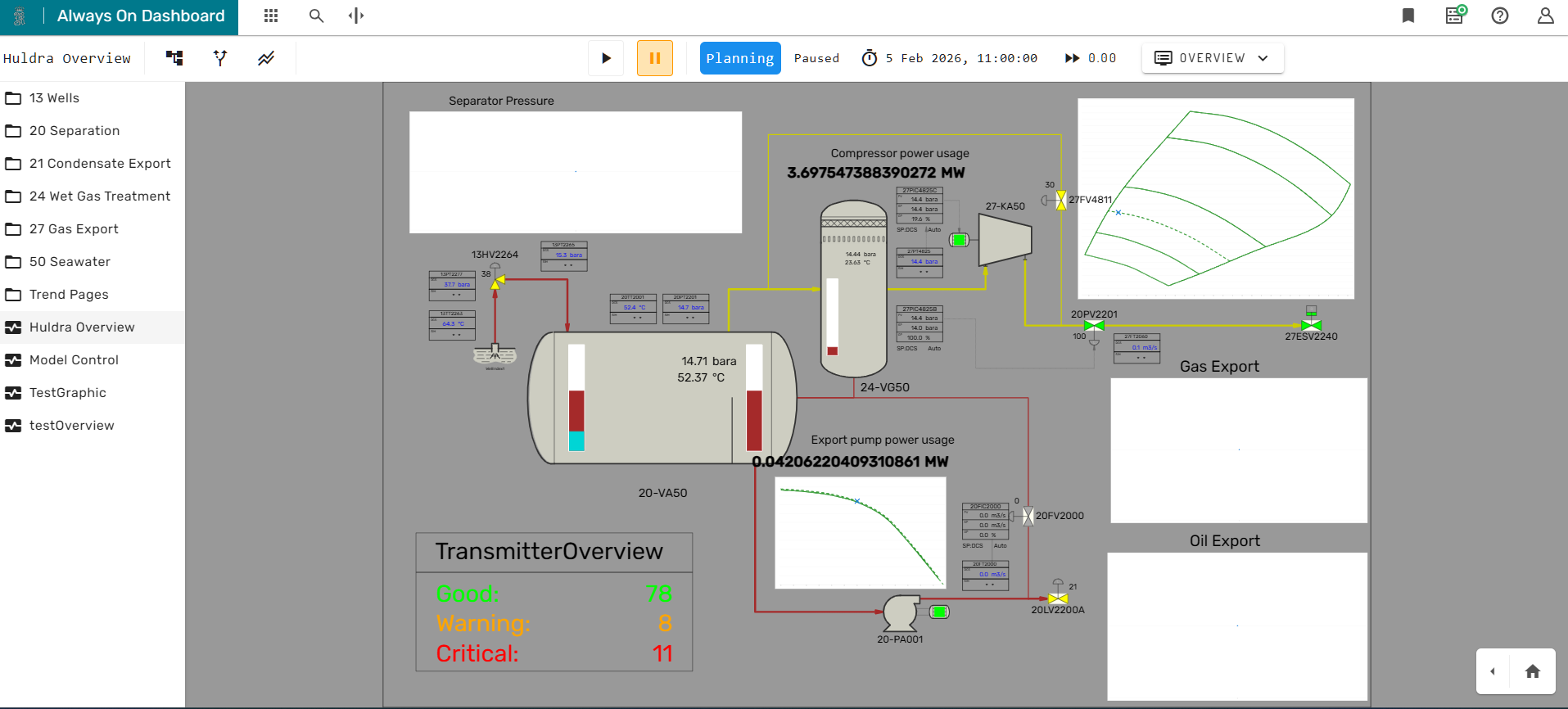
Once the simulation instance is ready for use, the Simulation Dashboard will show the home-graphic of the Simulation Project.
Controlling Model Execution
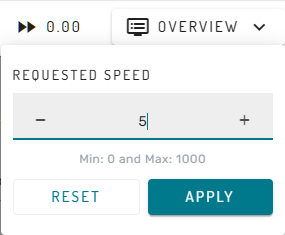
Once the What-If instance is ready, the main menu bar of the Simulation Dashboard provides altered functionality. The user can now start and stop model execution using the play and pause button. Furthermore, the target simulation speed can be changed by clicking on the number in the very right of the main menu bar. A new simulation speed can be set by using the + and - icons or by entering a number using the keyboard, and confirming the selection with the Apply button.
Controlling Model Behavior
In What-If Simulation mode, Faceplates, Stream Dialogs and similar can be opened as usual from the Simulation Dashboard.
However, all writable inputs and parameters in Faceplates or other dialogs can now be modified by the user. This is indicated by the grey color of the value field:
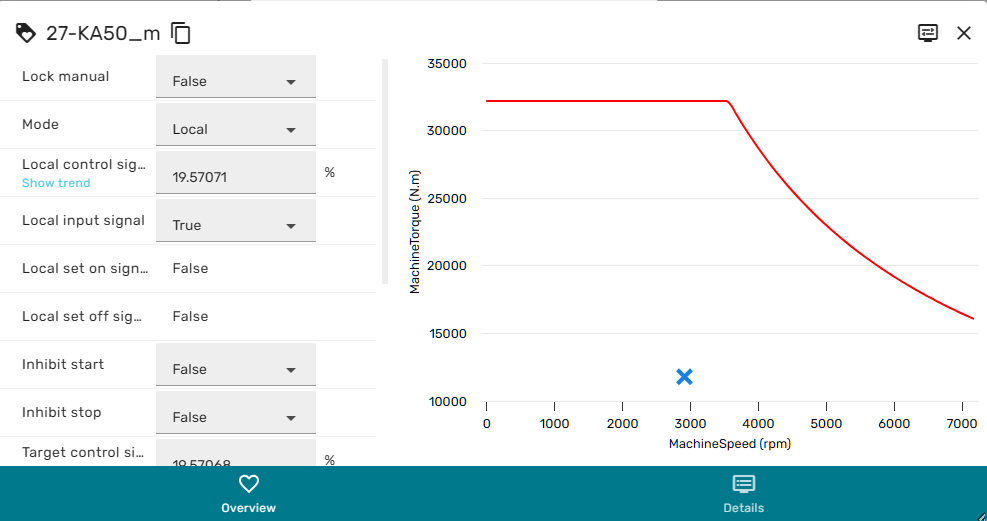
By clicking on such fields, the user can set the new input to a new value.
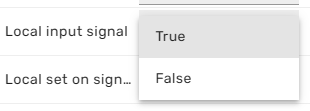
The interaction happens in realtime and interactively, so it will depend on the model run state how fast changes of a certain input will have an effect on other process quantities.