Admin Portal
To administrate simulation projects and simulation instances in Kognitwin, the user will need to have a dedicated admin access. Once a user has been granted the administrator rights, the so called "portal" can be accessed by appending "/portal" to your Kognitwin instance URL (for example kdi.kognitwin.com/portal).
The main menu bar on the left of the portal contains different categories and options.
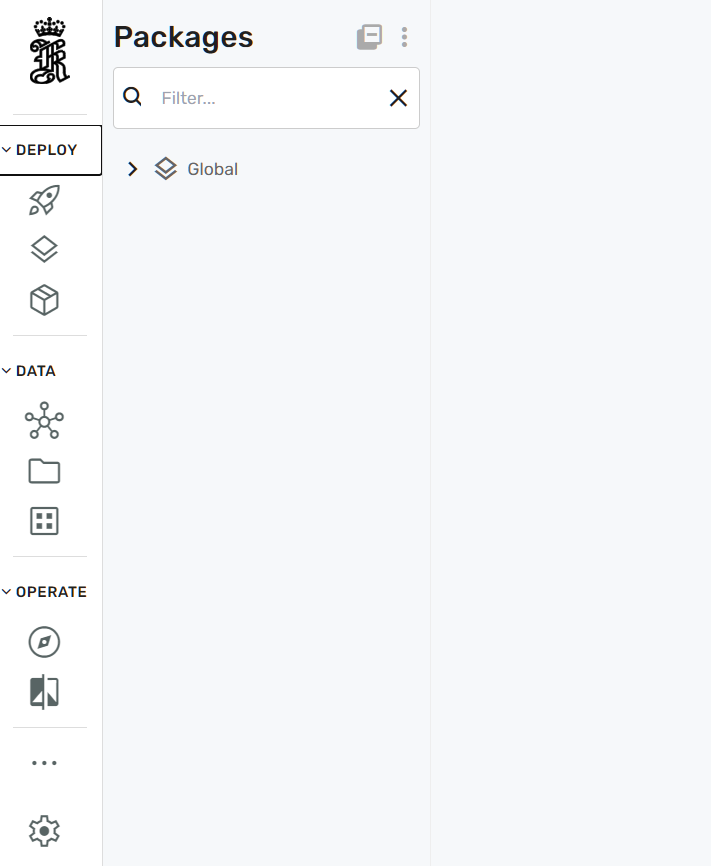
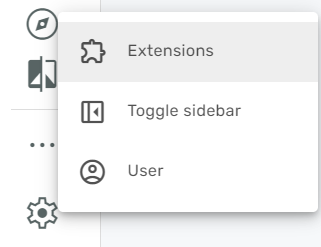
To enable simulation specific configuration, the simulation extension needs to be enabled from the settings menu. This can be achieved by clicking on the cog-wheel and then selecting extensions:
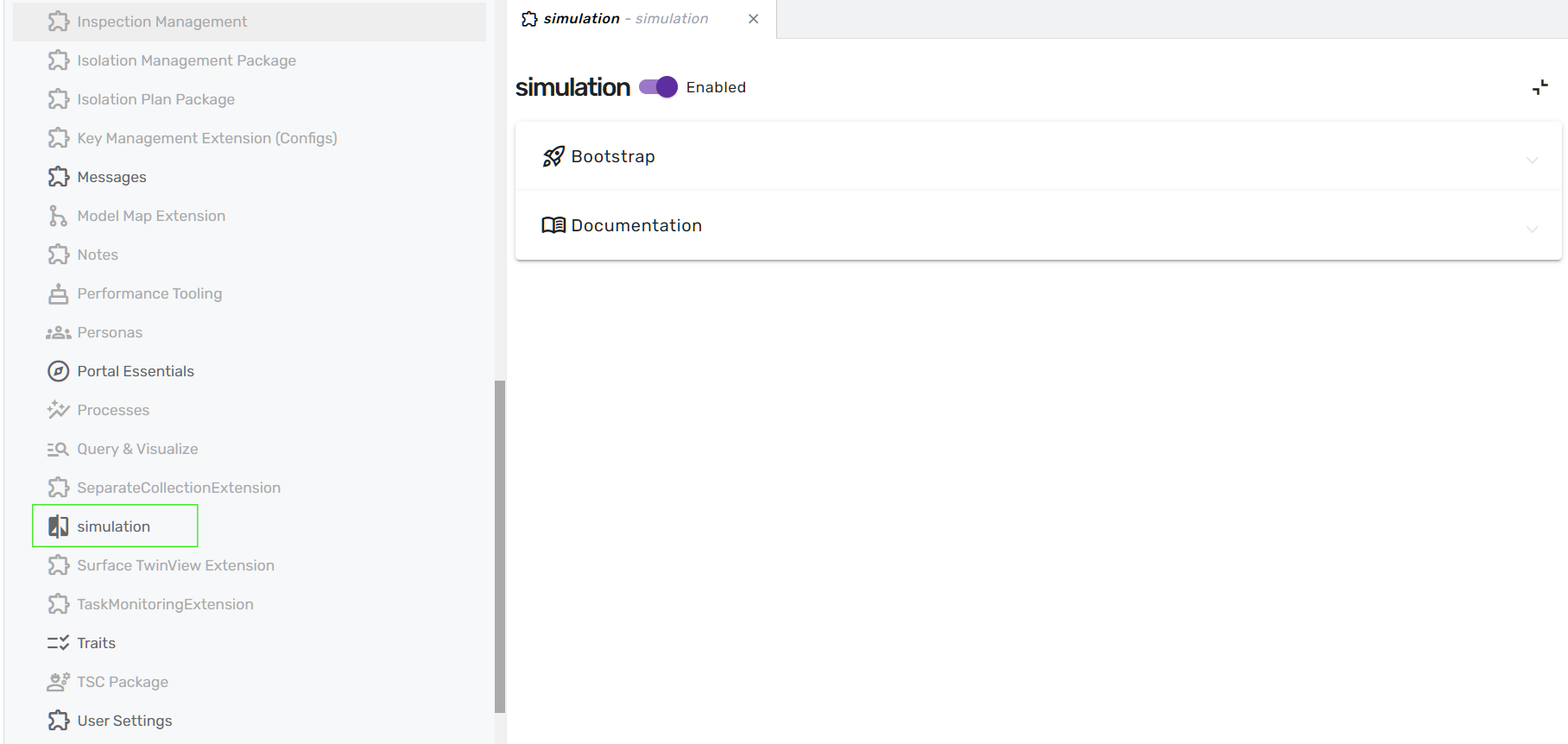
In the new menu stripe that opens, the Simulation category needs to be selected from the list. Clicking on the simulation menu entry will then allow the user to enable the simulations extension by moving the slider to "enabled"
Once the simulation extension is enabled, the user needs to refresh the website from the browser and a new main Simulation menu entry will appear under the "operations" section.
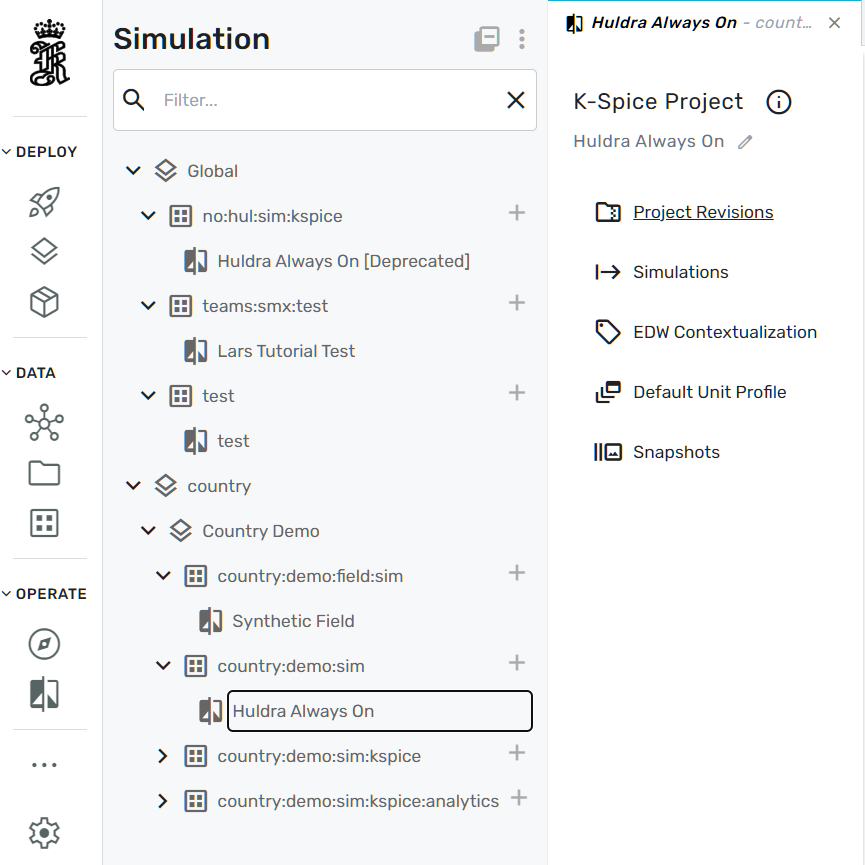
In this menu, a simulation project needs to be selected from the navigation tree (in this example case "Huldra Always On"). Now, the simulation project can be administered using the following configuration categories:
- Project Revisions
- Simulations
- EDW Contextualization
- Default Unit Profile
- Snapshots
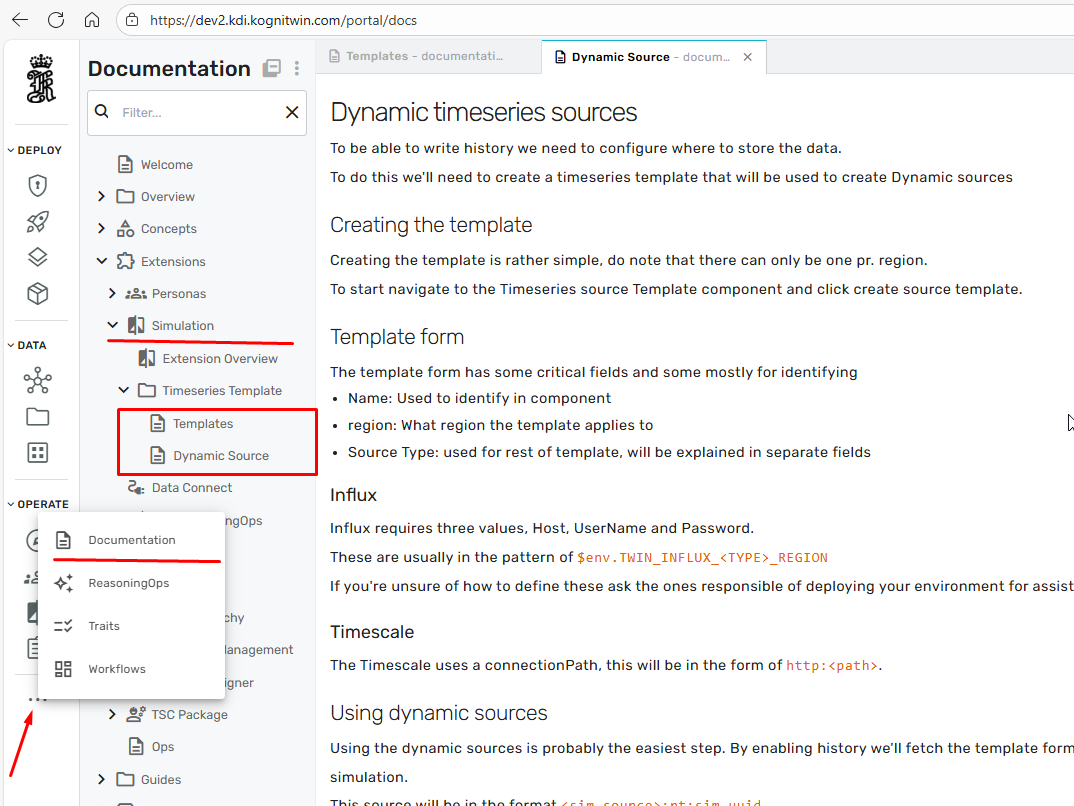
More detailed information on the functionality of the different administration workflows can be accessed directly from the portal: